Configuring custom nodes for use in Kanzi Studio
You can set how Kanzi Studio shows your custom nodes and how users interact with them:
Creating custom nodes and property types
In a Kanzi Engine plugin you can create custom nodes with custom property types. You can set how Kanzi Studio shows and lets users interact with these nodes.
To create a custom node with custom property types:
- To pass to Kanzi Studio information about the custom node, declare the metadata where you describe the node:
- In the .hpp file of your Kanzi Engine plugin project, after the metaclass definition, declare the function which returns the metadata:
    ...
    KZ_METACLASS_END();

    static PropertyTypeEditorInfoSharedPtr makeEditorInfo();
... - In the .cpp file of your Kanzi Engine plugin project, create the metadata.
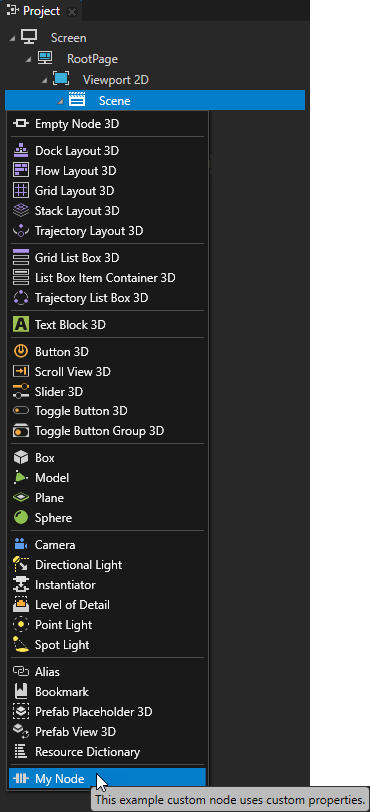
For example, to create a tooltip and to set automatically added and frequently used properties, add this code snippet:PropertyTypeEditorInfoSharedPtr MyPlugin::makeEditorInfo()
{
return PropertyTypeEditorInfoSharedPtr(
KZ_PROPERTY_TYPE_EDITOR_INFO(
[]() -> PropertyTypeEditorInfo::AttributeDictionary {
PropertyTypeEditorInfo::AttributeDictionary dict;
// Set the name that you want to use for your node in Kanzi Studio.
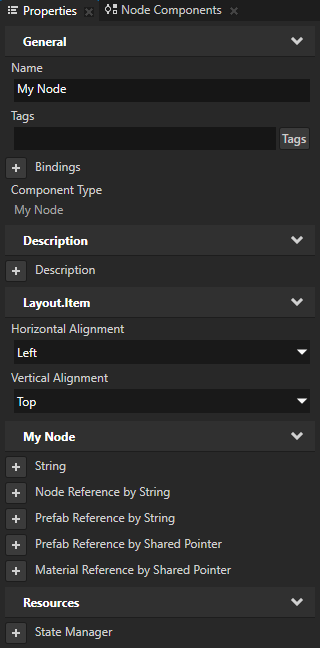
dict.displayName = "My Node";
// Set the tooltip that you want to use in the Kanzi Studio Create menu.
dict.tooltip = "This example custom node uses custom properties.";
// Add the Horizontal Alignment and Vertical Alignment properties to the node.
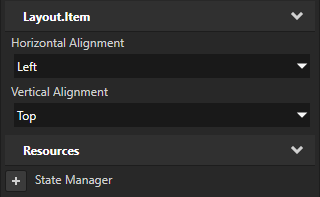
dict["AutomaticallyAddedProperties"] = "Node.HorizontalAlignment, Node.VerticalAlignment";
// Add the State Manager property as a frequently used property which users can add by clicking  next to the property name.
dict["FrequentlyAddedProperties"] = "Node.StateManager";
// Let the user add the Focus Scope property using the Add Property context menu or the context tab of the Add Properties window.
dict["ContextProperties"] = "FocusManager.FocusScope";
return dict;
}()));
}
next to the property name.
dict["FrequentlyAddedProperties"] = "Node.StateManager";
// Let the user add the Focus Scope property using the Add Property context menu or the context tab of the Add Properties window.
dict["ContextProperties"] = "FocusManager.FocusScope";
return dict;
}()));
}
-
Create the custom property types and their metadata.
For example:
- In the .hpp file of your Kanzi Engine plugin project, replace
    KZ_METACLASS_BEGIN(MyPlugin, Node3D, "CustomComponentType");
    KZ_METACLASS_END();
with
    // String property
    static PropertyType<string> StringProperty;
    // String reference to a node
    static PropertyType<string> NodeRefByStringProperty;
    // String reference to a prefab
    static PropertyType<string> PrefabRefByStringProperty;
    // Shared pointer reference to a prefab
    static PropertyType<ResourceSharedPtr> PrefabRefBySharedPtrProperty;
    // Shared pointer reference to a material
    static PropertyType<ResourceSharedPtr> MaterialRefBySharedPtrProperty;

    KZ_METACLASS_BEGIN(MyPlugin, Node3D, "MyNode");
        // Add the property types to the class metadata.
        KZ_METACLASS_PROPERTY_TYPE(StringProperty);
        KZ_METACLASS_PROPERTY_TYPE(NodeRefByStringProperty);
        KZ_METACLASS_PROPERTY_TYPE(PrefabRefByStringProperty);
        KZ_METACLASS_PROPERTY_TYPE(PrefabRefBySharedPtrProperty);
        KZ_METACLASS_PROPERTY_TYPE(MaterialRefBySharedPtrProperty);
    KZ_METACLASS_END();
- In the .cpp file of your Kanzi Engine plugin project, add the metadata for the custom property types. See Reference for showing Kanzi Engine plugin custom types in Kanzi Studio.
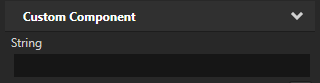
For example, to declare the metadata for the custom property types you created in the previous step:- String property with a one-line text editor:
// Creates a string property.
// This example does not set the editor. If you do not set the editor, Kanzi Studio uses
// the default editor for this property type.
PropertyType<string> MyPlugin::StringProperty(kzMakeFixedString("MyPlugin.String"), "", 0, false,
                                              KZ_DECLARE_EDITOR_METADATA
                                              (
                                                  metadata.displayName = "String";
                                              ));
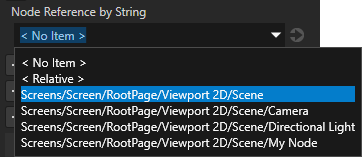
- String reference to a 3D node the user can select from a dropdown menu:
// Creates a string reference to a node.
PropertyType<string> MyPlugin::NodeRefByStringProperty(kzMakeFixedString("MyPlugin.NodeRefByString"), "", 0, false,
                                                       KZ_DECLARE_EDITOR_METADATA
                                                       (
                                                           metadata.displayName = "Node Reference by String";
                                                           // When you set valueProvider to ProjectObject:Node3D,
                                                           // Kanzi Studio automatically uses the Node 3D selector editor.
                                                           metadata.valueProvider = "ProjectObject:Node3D";
                                                       ));
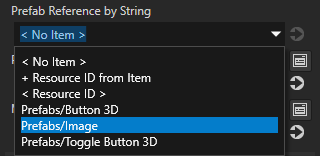
- String reference to a prefab the user can select from a dropdown menu:
// Creates a string reference to a prefab resource.
PropertyType<string> MyPlugin::PrefabRefByStringProperty(kzMakeFixedString("MyPlugin.PrefabRefByString"), "", 0, false,
                                                         KZ_DECLARE_EDITOR_METADATA
                                                         (
                                                             metadata.displayName = "Prefab Reference by String";
                                                             // When you set valueProvider to ProjectObject:PrefabTemplate,
                                                             // Kanzi Studio automatically uses the Prefab template selector editor.
                                                             metadata.valueProvider = "ProjectObject:PrefabTemplate";
                                                         ));
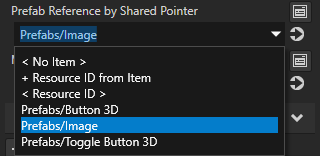
- Shared pointer reference to a prefab resource the user can select from a dropdown menu:
// Creates a shared pointer reference to a prefab resource.
PropertyType<ResourceSharedPtr> MyPlugin::PrefabRefBySharedPtrProperty(kzMakeFixedString("MyPlugin.PrefabRefBySharedPtr"), ResourceSharedPtr(), 0, false,
                                                                       KZ_DECLARE_EDITOR_METADATA
                                                                       (
                                                                           metadata.displayName = "Prefab Reference by Shared Pointer";
                                                                           // When you set valueProvider to ProjectObject:PrefabTemplate,
                                                                           // Kanzi Studio automatically uses the Prefab template selector editor.
                                                                           metadata.valueProvider = "ProjectObject:PrefabTemplate";
                                                                       ));
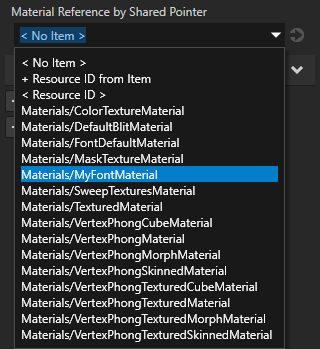
- Shared pointer reference to a material resource the user can select from a dropdown menu:
// Creates a shared pointer reference to a material resource.
PropertyType<ResourceSharedPtr> MyPlugin::MaterialRefBySharedPtrProperty(kzMakeFixedString("MyPlugin.MaterialRefBySharedPtr"), ResourceSharedPtr(), 0, false,
                                                                 KZ_DECLARE_EDITOR_METADATA
                                                                 (
                                                                     metadata.displayName = "Material Reference by Shared Pointer";
                                                                     // When you set valueProvider to ProjectObject:Material,
                                                                     // Kanzi Studio automatically uses the Material dropdown editor.
                                                                     metadata.valueProvider = "ProjectObject:Material";
                                                                 ));
- Build and install your plugin. See Adding a Kanzi Engine plugin to a Kanzi Studio project.
- In Kanzi Studio in the Library > Kanzi Engine Plugins select your plugin. In the Properties you can see the custom property types.
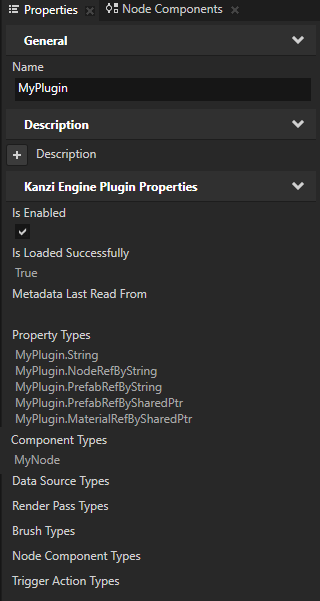
-
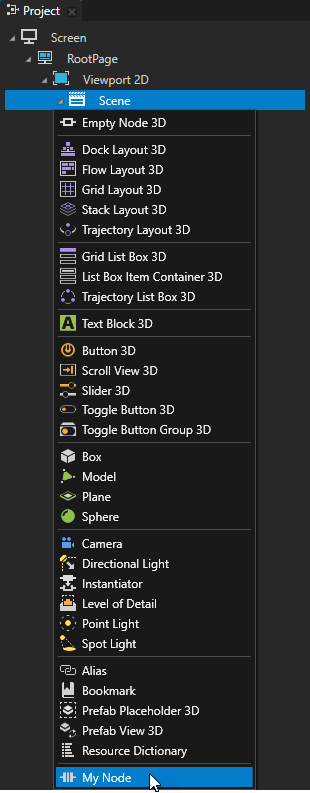
In the Project select a node to which you want to add your node, press Alt and right-click, and select My Node.
- (Optional) Set the icons for the node types you create. See Setting the icon for your node type.
- (Optional) By default Kanzi Studio adds custom properties as frequently used properties to the nodes of the type for which you created the property type. To set the node types for which Kanzi Studio suggests the property, and whether Kanzi Studio adds the property automatically or lets the user add it, set the
metadata.host attribute. See host.
Setting custom property types
To pass to Kanzi Studio information about the custom property types you create in a Kanzi Engine plugin, you declare metadata that describe these property types. The metadata enables Kanzi Engine plugin users to interact with the plugin content in Kanzi Studio. See Reference for showing Kanzi Engine plugin custom types in Kanzi Studio.
For example, to create the metadata for the custom property type VideoFileNameProperty to allow Kanzi Studio user to select a video file:
PropertyType<string> VideoView2D::VideoFileNameProperty(kzMakeFixedString("VideoView2D.VideoFileName"), "video.mp4", 0, false,
                                                        KZ_DECLARE_EDITOR_METADATA
                                                        (
                                                            // Set the name of the property type the way you want to show it in Kanzi Studio.
                                                            metadata.displayName = "Video Filename";
                                                            // Set the tooltip for the property type.
                                                            metadata.tooltip = "Video file to be played";
                                                            // Set the category under which this property type is listed in the Properties.
                                                            metadata.category = "Video";
                                                            // Set the editor you want the user to use to edit the value of this property type.
                                                            // BrowseFileTextEditor editor contains a text box with a Browse button next to it.
                                                            metadata.editor = "BrowseFileTextEditor";
                                                            // Set the default value of the property in Kanzi Studio.
                                                            // The Kanzi Engine default value is set in the first line of this example.
                                                            metadata["DefaultValue"] = "video.mp4";
                                                        ));
When the user adds a new VideoView2D node, Kanzi Studio
adds to the properties of the node in the category Video the Video Filename property, which has a text editor with a Browse button, a tooltip, and the default value set to video.mp4.

Property type names cannot contain:
- A period (.) in the beginning or at the end of a property name
- Spaces
- Tabs
- Slashes (/)
- Backslashes (\)
- Hashes (#)
- Opening or closing braces ({})
- At signs (@)
Setting custom message types
To pass to Kanzi Studio information about the custom message types you create in a Kanzi Engine plugin, you declare metadata that describe these message types. The metadata enables Kanzi Engine plugin users to interact with the plugin content in Kanzi Studio. See Reference for showing Kanzi Engine plugin custom types in Kanzi Studio.
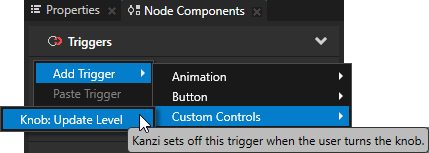
For example, to create the metadata for the custom message type Message.Knob.UpdateLevel to allow Kanzi Studio user to add a trigger called Knob: Update Level.
MessageType<Knob::UpdateMessageArguments> Knob::UpdateMessage(kzMakeFixedString("Message.Knob.UpdateLevel"),
                                                              KZ_DECLARE_EDITOR_METADATA
                                                              (
                                                                  // Set the name of the message the way you want to show it in Kanzi Studio.
                                                                  metadata.displayName = "Knob: Update Level";
                                                                  // Set the tooltip for the message.
                                                                  metadata.tooltip = "Kanzi sets off this trigger when the user turns the knob.";
                                                                  // Set the category under which this message is listed in the triggers list.
                                                                  metadata.category = "Custom Controls";
                                                                  // Do not show the message in the trigger actions dropdown menu.
                                                                  metadata["Sendable"] = "False";
                                                              ));
Setting the icon for your node type
If you do not set the icon for your node type, Kanzi Studio uses the default icon ( ). To make it easier for Kanzi Studio users to visually keep track of the nodes in the Project, you can set your own icons for your nodes.
To set the icon for your node type:
- In Visual Studio open the Visual Studio solution for your project in <KanziWorkspace>/Projects/<ProjectName>/Application/configs/platforms/win32.
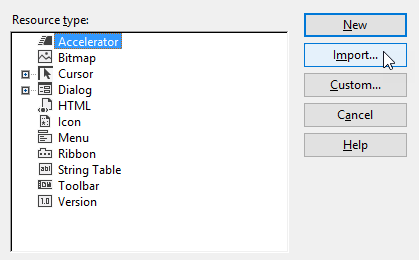
- In the Solution Explorer double-click the Resource File (<ProjectName>.rc) of your plugin project to open the Resource View, right-click the selected .rc folder, select Add Resource, and import the .ico file you want to use as the icon for your node.
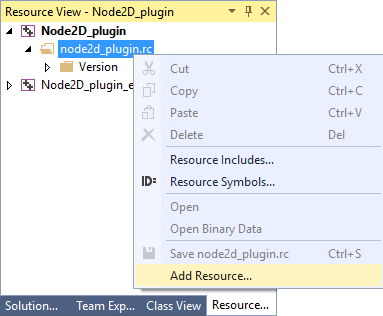
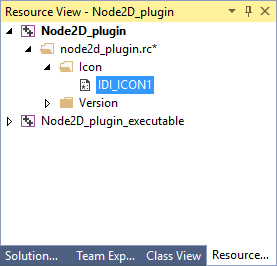
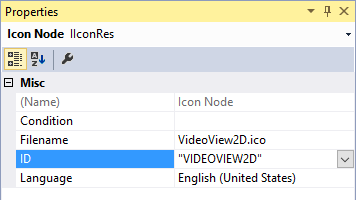
- In the Resource View in the folder named Icon select the icon you imported and in the Properties set the ID of the icon resource to the name of your node type in all caps inside double quotes.
For example, if your node type is VideoView2D, set ID to "VIDEOVIEW2D".
- Copy the .dll files of the plugin to the same location where the previous version of the plugin is located.
-
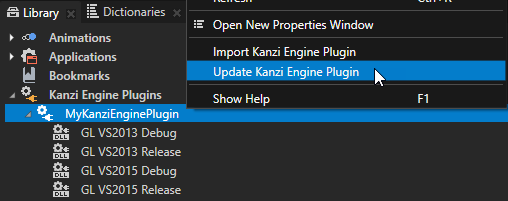
In Kanzi Studio in the Library > Kanzi Engine Plugins right-click the plugin you have updated and select Update Kanzi Engine Plugin.
When Kanzi Studio loads the new version of the plugin, it shows changes in the properties and classes defined in the plugin.
For an example where a custom node type uses its own icon, see Node2D plugin example.
See also
Creating Kanzi Engine plugins
Using Kanzi Engine plugins
Reference for showing Kanzi Engine plugin custom types in Kanzi Studio
Node2D plugin example
Node3D plugin example

Open topic with navigation